

Table of Contents
CLAPP is a customer loyalty program designed for small businesses. There are many kinds of software out there that have options for customer loyalty data storage, however most of those applications are subscription based or require upfront purchases. CLAPP is a customer data management program that is lightweight and open source, allowing it to run on low-spec Windows based POS systems. Since it is open source, experienced developers also have the ability to make changes to the code to fit the exact specifications of a users requirements. In this handbook, I will be covering how to download, run, and operate CLAPP on a Microsoft Windows environment.
First, click here to open my GitHub repository containing the files you will need to download. Navigate to and click on the green code button, and then click on download ZIP: 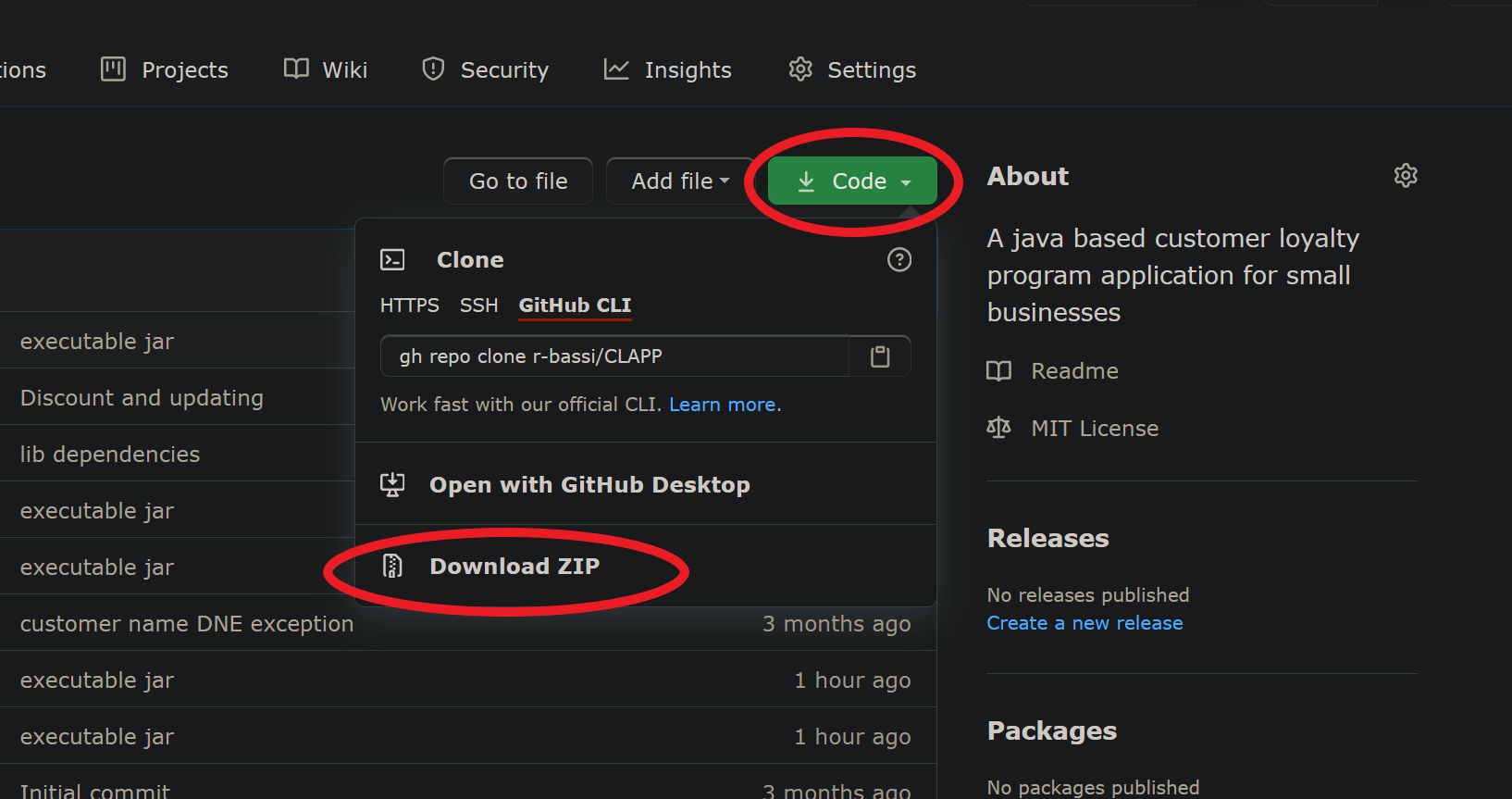
Once you have downloaded the ZIP file, navigate to where you have saved the file and right click -> extract the ZIP file to the given folder using an unzipping tool of your choosing (WinRAR, 7zip, etc.): 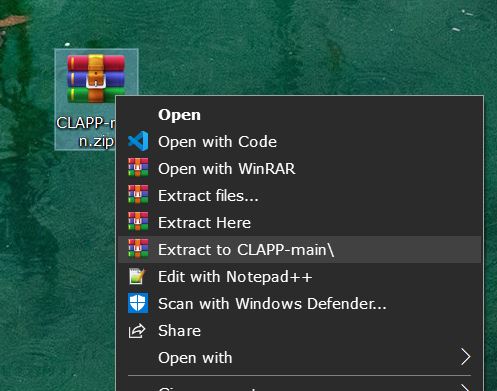
Open the newly extracted folder, where you will find CLAPP.jar: 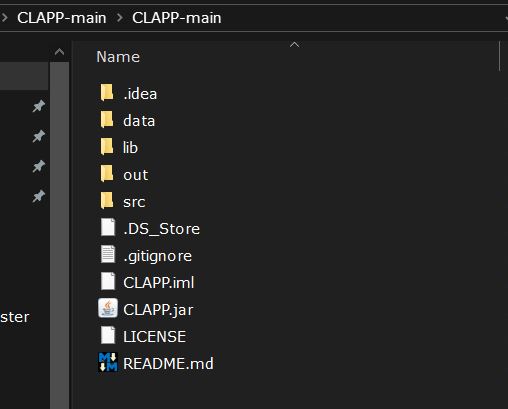
Double click on CLAPP.jar, and you will see the main screen for the CLAPP application. Now you are ready to begin storing, updating, and searching for customer information.
Once you have opened up CLAPP, you will see the options to add a new customer, find a customer by their recorded name, find a customer by their customer number, and add to a returning customers total spending. The blank white area at the bottom of the application is a log of the past few actions within the application, which can be cleared using the clear button.
To add a new customer, simply click on the “New Customer” tab and enter the customers information, along with the amount they have spent at their current visit, and click “Submit”: 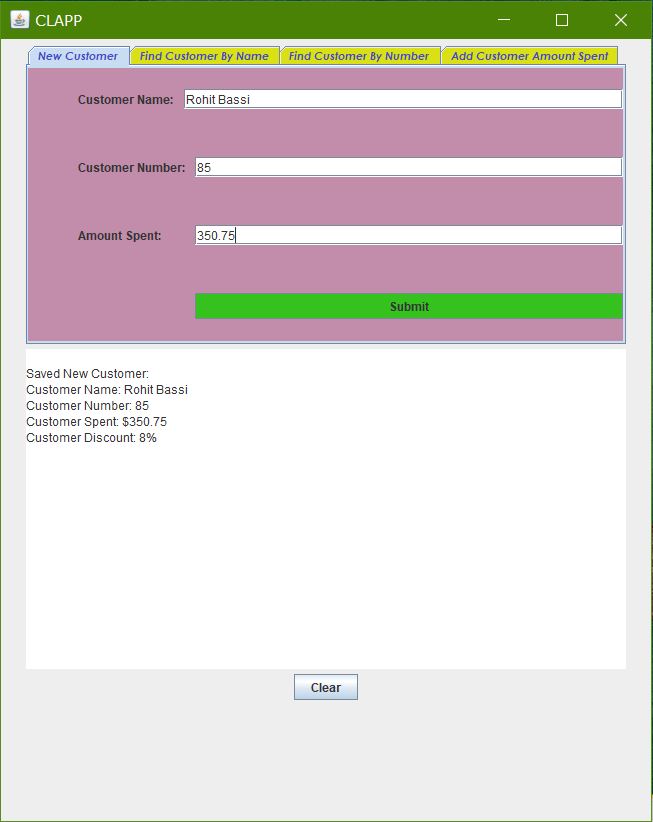
Once you add a new customer, you may find a customer by their name or number. Searching for a customer by their name is case and character sensitive, so to find a customer that has been added, we must search for their exact name as was stored in the New Customer tab: 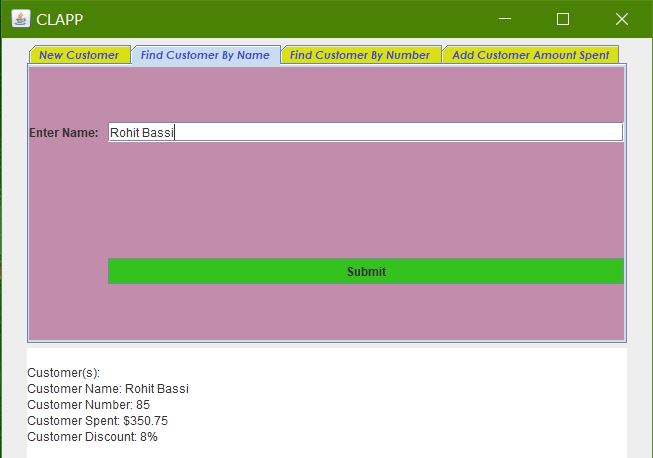
The other option is to find them by the customer number that you assigned to them: 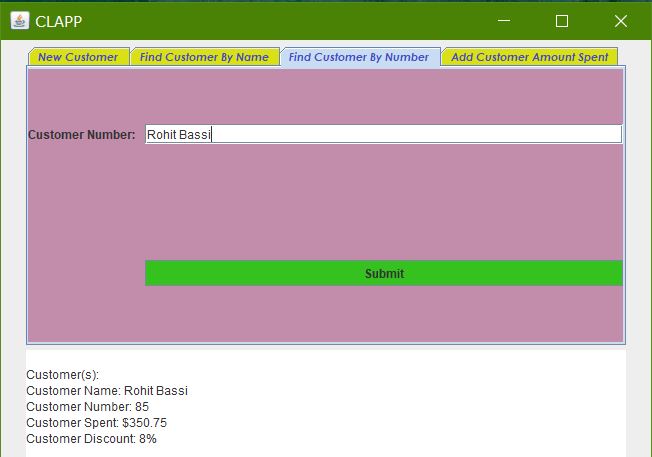
I hope to have helped you with using CLAPP with this post. If you require more assistance with setting up Java or JDK dependencies, take a look at these articles here and here. If you are having any problems with CLAPP, you may send me an email and I will try to help you as much as possible. Feel free to share this post using the links at the top or bottom of this page, or anywhere else.
Currently, the only developer involved with CLAPP is me. If you you have other ideas or you would like to improve upon CLAPP, you can fork the repository and experiment with the application at will.
Some things that have not yet been implemented are listed in the README.md of the CLAPP application, and on the CLAPP GitHub page here.
If you would like to collaborate with me on a future project or contact me about an opportunity, feel free to use any of the links on the home page.